Last fall, we launched Place Pages which organize relevant and useful information about places on Google Maps. Since then we've been developing a version, available now, which gives you access to the same useful information optimized for your mobile phone. For example, in the video below, the Place Page for Mama's restaurant in San Francisco shows location information, customer ratings, opening hours and what people are saying about the restaurant in summary format.
To get more details on opening hours or on customer specific comments related to the food, service or ambiance, simply click on those respective sections to show more information instantly. The Place Page also provides links to useful websites where the user can read full reviews about the place. Lastly, if address and cross street information is not enough, click on the map button and you will be taken to a full screen dynamic map which is pannable and zoomable. In this way you can quickly see the restaurant's location in the context of the entire neighborhood.
To try this yourself, go to google.com on your phone's browser and search for "mama's sf". On the search results page, click on the listing for Mama's restaurant to go to the Place Page. This mobile optimized Place Page is currently supported on Android-powered devices and iPhones/iPod touches in the US.
الثلاثاء، 27 أبريل 2010

الأربعاء، 21 أبريل 2010
Search by Voice Comes to Google Maps 4.1 for Windows Mobile and Symbian S60 phones
We understand that typing on phones isn’t as easy or fast as talking into them. As a result, we’re big fans of letting you search in Google Maps for mobile in the most natural way possible -- with your voice! Not wanting the BlackBerry and Android folks to have all the fun, today we’re happy to announce Search by voice in Google Maps 4.1 on Windows Mobile and Symbian S60 phones.
Search by voice lets you easily search for anything by simply speaking your search terms instead of typing them. Just open Google Maps, press your phone’s “call” button, and clearly speak your search term like “Park Plaza.” Search by voice works with all the kinds of searches Google Maps for mobile already supports, including places, addresses (1600 Amphitheatre Parkway), specific businesses (The French Laundry), or types of businesses (sushi restaurants new york).


You may also notice a few other additions, including a redesigned settings page with Search by voice language choices. Choose your preferred language from the supported options, including multiple English accents and Mandarin Chinese. Also, if you find a problem with any information in Google Maps, you can use the “Report a problem” option to let us know.


To get started, install the latest version of Google Maps for mobile 4.1 for Windows Mobile and Symbian S60 by going to m.google.com/maps in your phone’s standard web browser (e.g. Internet Explorer on Windows Mobile). This update is available in all the countries and languages where Google Maps for mobile is currently available.
Visit our Help Center to learn more or tell us your feedback and questions in our Help Forum. Give us suggestions and vote on other people’s on the Mobile Product Ideas page.
Posted by Yuliang Wang and Yifei Zhang, Software Engineers, Google Mobile Team
Search by voice lets you easily search for anything by simply speaking your search terms instead of typing them. Just open Google Maps, press your phone’s “call” button, and clearly speak your search term like “Park Plaza.” Search by voice works with all the kinds of searches Google Maps for mobile already supports, including places, addresses (1600 Amphitheatre Parkway), specific businesses (The French Laundry), or types of businesses (sushi restaurants new york).


You may also notice a few other additions, including a redesigned settings page with Search by voice language choices. Choose your preferred language from the supported options, including multiple English accents and Mandarin Chinese. Also, if you find a problem with any information in Google Maps, you can use the “Report a problem” option to let us know.


To get started, install the latest version of Google Maps for mobile 4.1 for Windows Mobile and Symbian S60 by going to m.google.com/maps in your phone’s standard web browser (e.g. Internet Explorer on Windows Mobile). This update is available in all the countries and languages where Google Maps for mobile is currently available.
Visit our Help Center to learn more or tell us your feedback and questions in our Help Forum. Give us suggestions and vote on other people’s on the Mobile Product Ideas page.
Posted by Yuliang Wang and Yifei Zhang, Software Engineers, Google Mobile Team
Google Buzz Layer Now Available for Google Maps On Your Computer
(Cross-posted from Google LatLong)
With Google Buzz for mobile, you can choose to post publicly and include your location, providing context for your followers and allowing others to see what you have to say about a place on a map. We’ve received a lot of requests to make the Google Buzz layer available on desktop Google Maps, and today we're doing just that.
Now you can use Google Maps from the comfort of your computer to find out what people are saying about places near and far. If you’re new to the public Google Buzz layer, check out some tips for exploring the Buzz layer on Google Maps for mobile to see a few of the fun ways people have already been using it on their phones, sharing everything from breaking news to restaurant recommendations.

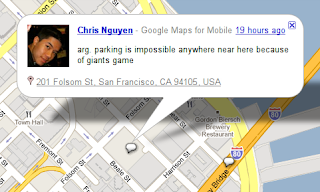
To view the Google Buzz layer from your computer, go to Google Maps in your web browser and select Buzz from the More... menu in the top right corner of the map. Find an interesting area like your neighborhood and select any available icon to see what’s going on there. In the post’s window, click on the name to see the author’s public profile, the timestamp to comment on the post, or the place to see it in Maps. The Google Buzz layer is available for maps.google.com in all currently supported languages.
The desktop layer is view-only, however, you can post using Google Buzz for mobile from the web app (buzz.google.com) on your phone, Google Maps for mobile, the Android widget, and more.
With Google Buzz for mobile, you can choose to post publicly and include your location, providing context for your followers and allowing others to see what you have to say about a place on a map. We’ve received a lot of requests to make the Google Buzz layer available on desktop Google Maps, and today we're doing just that.
Now you can use Google Maps from the comfort of your computer to find out what people are saying about places near and far. If you’re new to the public Google Buzz layer, check out some tips for exploring the Buzz layer on Google Maps for mobile to see a few of the fun ways people have already been using it on their phones, sharing everything from breaking news to restaurant recommendations.


To view the Google Buzz layer from your computer, go to Google Maps in your web browser and select Buzz from the More... menu in the top right corner of the map. Find an interesting area like your neighborhood and select any available icon to see what’s going on there. In the post’s window, click on the name to see the author’s public profile, the timestamp to comment on the post, or the place to see it in Maps. The Google Buzz layer is available for maps.google.com in all currently supported languages.
The desktop layer is view-only, however, you can post using Google Buzz for mobile from the web app (buzz.google.com) on your phone, Google Maps for mobile, the Android widget, and more.
Explore the UK and Ireland with Google Maps Navigation
Despite recent travel disruption due to Eyjafjallajökull, those of us marooned in the UK and Ireland have enjoyed lovely sunny weather. It’s the perfect excuse to take a road trip, wouldn’t you agree?

With Google Maps Navigation (beta), now available in the UK and Ireland for Android devices 1.6 and higher, traveling by car couldn’t be easier. Like other satnav devices, Navigation includes 3D views, turn-by-turn voice guidance, and automatic rerouting. But because Google Maps Navigation is connected to the Internet, it also features powerful functionality you can’t get from other satnav services, including the most up to date map, business, and traffic data, access to satellite and street views, and of course, search.
With Google Maps Navigation, you can search by voice, and in plain English -- just press the voice search button on your Android phone, say “navigate to Sainsbury’s,” and Navigation will open automatically and guide you to the supermarket. Running out of petrol? You can search along your route for nearby petrol stations, cash points, restaurants, and car parks, without exiting the navigation path.


Google Maps Navigation is available in the US, UK, and Ireland. And like other Google Maps features, Navigation is free. To get Google Maps Navigation on your Android phone, search for “Google Maps” on Android Market and download the latest update. Visit the Google Maps Navigation page to learn more and watch a video, or check out the help center if you have questions.
posted by Sara Rowghani, Product Marketing Manager
الثلاثاء، 13 أبريل 2010
The Iterative Web App: Redesign of the Compose Page
On April 7th 2009, we announced a new version of Gmail for mobile for iPhone and Android-powered devices. Among the improvements was a complete redesign of the web application's underlying code which allows us to more rapidly develop and release new features that users have been asking for, as explained in our first post. We'd like to introduce The Iterative Webapp, a series where we will continue to release features for Gmail for mobile. Today: Compose view redesign
You're on the subway and you get the brilliant idea to host a TV viewing party for your friends for the premier of Conan O'Brien's new show. You pull out your phone (or your iPad) and start typing names into the compose page at gmail.com. (Yes, it works on the subway.) You've added Naveed, Suzy and 7 others before you remember that Naveed made you eat grass at the last BBQ. You want to remove him from the list but his email address has scrolled way out of view. Argh! After some intense scrolling and lots of backspaces, you finally manage to get rid of Naveed's email address.
Enter our redesigned Compose page. It has new address fields that automatically expand to fit all the email addresses that you're entering, so you'll never have to worry about this type of problem again.

As always, when you start typing an name into the new compose view, you'll see possible contact choices in the autocomplete dropdown. When you select a contact from the autocomplete dropdown, only the person's name is entered into the address field. This saves screen space and won't leave you thinking "man, who is hikingfan@gmail.com?" when you're reviewing an email before sending.
Once you select a contact from the autocomplete menu, you'll also notice that the contact becomes an object that you can tap on. Tapping on a contact opens a detailed view that let's you double-check the person's email address or remove them from the email. Yes, this means you can remove an email address in two taps!
Some other nifty new features which will help you compose your emails faster:
- Remove the contact you just added by tapping Backspace.
- Press the '+' button to see your top contacts, or hide them by pressing the '–' button.
- If for some reason autocomplete fails you and the person you are trying to reach is a Gmail user, just type their Gmail username and a comma, and we'll take care of the pesky @ sign and the rest (so [hikingfan] becomes [hikingfan@gmail.com].)
- The page now fills the entire screen, giving you more space to see what you're writing.
This update is available for Android, iPad, iPhone, and iPod Touch devices. We always love to hear what you'd like to see next, so be sure to leave your feedback in our Help Forum or the Mobile Product Ideas page!
Happy composing!
Posted by Andra Adams, Software Engineer Intern, Google Mobile
Google Mobile App for iPad now available in the App Store
We’re pleased to announce that a new iPad-friendly version of Google Mobile App is now available in the App Store worldwide. By “iPad-friendly”, we mean that this new version has been designed to show neatly on the iPad’s screen, and that the usual features of Google Mobile App for iPhone, like search by voice and My Location, work well. From the Apps tab, you can also easily navigate to Google’s web-based apps, such as Gmail, which was recently optimized for iPad.
While this first version of Google Mobile App for iPad is essentially the same app we’ve built for iPhone, we’re working on improving Google Mobile App so that it takes advantage of iPad’s features. Stay tuned as we continue to make it and other Google products even better on this new type of device.
To download Google Mobile App to your iPad, iPhone, or iPod touch (requires OS 3.0 or higher), search for “Google Mobile App” in the App Store or just visit http://itunes.com/app/googlemobileapp.
While this first version of Google Mobile App for iPad is essentially the same app we’ve built for iPhone, we’re working on improving Google Mobile App so that it takes advantage of iPad’s features. Stay tuned as we continue to make it and other Google products even better on this new type of device.
To download Google Mobile App to your iPad, iPhone, or iPod touch (requires OS 3.0 or higher), search for “Google Mobile App” in the App Store or just visit http://itunes.com/app/googlemobileapp.
الخميس، 8 أبريل 2010
Universal search features in Google Suggest for mobile
 Last December on the Official Google Blog, we announced how universal search features in Google Suggest could show useful information while the user is composing a query from the Google home page. Today, we are bringing this same functionality to mobile phones so that getting answers while on the go is even faster and easier. For example, let's say you're flying to London and want to know: Is my flight on time? Or what is the exchange rate of the pound? As you type the flight "Ba 284" or "Usd in pounds", the answers are provided right below the search box, without having to wait for the results page. Other searches that show answers include weather (e.g., "weather london"), stock quotes (e.g., "intc"), current time (e.g., "time london"), calculator (e.g. "29*37") and unit conversion (e.g., "220 miles in km").
 To try this yourself, go to google.com on your phone's browser and type your own query to see these special results under the search box. Note that if you don't see these results at first, try refreshing the page in your browser. The functionality is currently supported on Android-powered devices, iPhones/iPods and Palm WebOS devices in the US.
الاشتراك في:
الرسائل (Atom)