الأربعاء، 7 أبريل 2010

Google Maps 4.0 for BlackBerry adds Search by Voice, Google Buzz, Starring, Labs, and More


We’ve been rolling out new versions of Google Maps for mobile at a fast pace lately, and the first Google Maps for BlackBerry update of 2010 is a big one. For version 4.0, we’ve added new features to help you find places faster, post from those places with Google Buzz, star them for quick access, and more.

Search by voice
For starters, we’ve added Search by voice to all BlackBerry devices to save your overworked thumbs. Simply press and hold the green “call” button, speak your search, and see your results quickly appear without typing a single letter. Try it now for any search, like the name of my favorite hometown pizza place, “Punch Pizza in Minneapolis.” You can also search by voice for addresses like “802 Washington Avenue Southeast” or search for other another pizza place to try by speaking, “pizza restaurants.” Currently supported languages include multiple English accents and Mandarin Chinese.


Google Buzz
Google Buzz for mobile also makes its debut on BlackBerry phones in Google Maps 4.0 (see availability). Use the Google Buzz layer to see what’s going on around you or to post to the layer yourself. Check out the many ways to explore the Buzz layer in Google Maps for mobile, including sharing pictures, news, and more. From the Maps main menu, select Layers > Buzz to enable the layer; open the menu and select “Post Buzz” to add your own public post from a location or place.


Take your searches and starred places to go.
Just like in Google Maps on Android, the BlackBerry version now provides personalized search suggestions from your maps.google.com search history. If I previously searched for “Punch Pizza” at home, I can simply type “pun” into Maps on my phone to see “Punch Pizza” at the top of the suggested search terms. Make sure you’ve signed in to your Google Account (Menu > Sign In) and have Web History enabled for your account.

Signing in to your Google Account also synchronizes starred items between maps.google.com on your computer (My Maps > Starred items) and phone (Menu > Starred Items). I’ll do my heavy pizza research at home, star several pizzerias I want to try, and browse the list in Google Maps on my phone when I’m ready to eat.

Wait, there’s more!
Also check out other new features added with 4.0:
  • Use Labs to try experimental features like the Scale Bar or Terrain layer (great for hiking enthusiasts!).
  • See nearby businesses at an address or location by selecting a point from the map.
  • Report a problem with the map data or a business listing.
To get started, install the latest version of Google Maps 4.0 for BlackBerry by going to m.google.com/maps in your BlackBerry’s Internet Browser. The update for BlackBerry Enterprise Server administrators and users, including support for BlackBerry OS 5.0 phones, is available here.

Visit our Help Center to learn more or tell us your feedback and questions in our Help Forum. Give us suggestions and vote on other people’s on the Mobile Product Ideas page!

الثلاثاء، 6 أبريل 2010

Gmail for mobile integrates with Google Buzz

When Google Buzz for mobile launched in February, we created the mobile web app at buzz.google.com so you could post buzz on the go. Depending on your inbox integration settings buzz gets sent to your Gmail inbox when people @reply you, comment on something you’ve posted, or comment on a post after you.

With the latest iteration of Gmail for mobile, we’ve worked to integrate buzz with your mobile inbox. Now, you’ll see buzz in your inbox on your phone just like you do in the desktop version of Gmail, complete with the little Google Buzz icon. When you open a buzz post from your inbox, you can perform all the standard functions, such as liking the post or commenting, just as you can from the desktop Gmail inbox.

To try this out, simply go to gmail.com in your iPhone or Android browser.

الجمعة، 2 أبريل 2010

Google services on the iPad and tablet computers

Here at Google we’re really excited about the promise of tablet computers, which will be great for browsing the web and using apps. We’ve been working hard to optimize our services for the new format - larger touchscreens, increased portability, rich sensors - and we’d like to share some information about our progress so far.

While surfing the web on your iPad, we expect many of you will want to check your Gmail. If you go to gmail.com in your browser, you’ll see something different than what you’re used to on the desktop. We’re releasing an experimental user interface for the iPad built on the Gmail for mobile HTML5 web app that we launched last year for the iPhone and Android devices. Those devices have large screens compared to other phones, and tablets like the iPad give us even more room to innovate. To take advantage of the iPad’s large display, we’ve created a two-pane view with your list of conversations on the left and messages to the right.


To try this new interface, go to gmail.com in your browser. We recommend adding a homescreen link for easy access. As this interface is experimental, expect changes as we continue to develop and optimize. Also, please let us know any ideas or feedback that you have. You can also access Gmail on the iPad through the native Mail app using the IMAP protocol.

Additionally, the iPad ships with a number of Google services pre-installed. As with Mac computers and the iPhone, you’ll find Google Search in the top right corner of Safari. The YouTube app for iPad is built-in, so you can watch HD videos and read and write comments. The new Maps app on iPad takes advantage of high-resolution satellite and Street View imagery, includes a new terrain view, and lets you search for local businesses and get directions. Just like on the iPhone, you can also go to the App Store to download Google Mobile App with search by voice. Of course, Google Mobile App was originally designed for the iPhone’s screen dimensions, but we’ve adapted it to work on the iPad and we’re looking into new ideas to make the app even better.

As you use Google’s web-based applications on iPad, you’ll notice that you sometimes see the desktop user interface and other times you see the mobile interface. We’ve evaluated the behavior of each Google web app using the iPad Simulator, and we are serving the interface we feel works best. If you’d like any help using our products on iPad, please click the 'Help' link within the product.

We’re particularly excited by how tablet computers create the opportunity for new kinds of user interaction. Here on the mobile team, we often talk about how mobile devices are sensor-rich: they can sense touch through their screens, see with a camera, hear through a microphone, and they know where they are with GPS. The same holds true for tablet computers, and we’re just starting to work through how our products can become even better on devices like the iPad.

Update on April 4, 2010 @ 12:30 AM: The new Google Mobile App for iPad is currently not yet available in the App Store. The version that you can download now is the iPhone/iPod touch version.

Update on April 13, 2010 @ 11:40 AM: The new Google Mobile App for iPad is now available in the App Store.

الخميس، 1 أبريل 2010

Grunt, Woof and Moo to you too

(Cross-posted with the Google translate blog)

For millennia man and animal have tolerantly coexisted, separated by language and the development of opposable thumbs. Today we can proudly say that we have overcome one of those hurdles. Presenting Google Translate for Animals, a new application available in Android Market.


This application allows you to record animal sounds and have the sounds analyzed and translated by Google Translate into any of the 52 supported languages. With animal translation you can finally understand why Spot keeps peeing in your closet or why Pickles keeps leaving dead mice in the tub. No longer must humanity struggle to comprehend when Lassie warns, “Hurry, Timmy’s fallen down the well!”

The technology isn’t perfect yet, so you may discover some translations that don’t make perfect sense. The algorithms are always improving however, thanks to the large corpus of cute cat videos that have been uploaded to YouTube.

We think that this is an exciting step in understanding and communicating with the world around us. Stay tuned for the addition of “old car” and “stomach” to the translation capabilities of the application this summer.

Our newest Mobile Search feature: Where am I?

Many of our improvements to search quality come from analyzing actual search queries. We’re constantly trying to surface more relevant search results in as many situations as we can.

Well, I’m happy to announce that for those of you who turn to Google in search of, “where am I,” we finally have a better result. Starting today, just go to Google.com on your phone in the US, search for “where am I”, and wonder about your own whereabouts no more.

Note that in this alpha release, we are finding that our results can be slightly off. However, accuracy should improve with greater usage. So if at first the answer is not what you’d expect, please continue to try it over the next couple of days and ask your friends to do the same.

الأربعاء، 31 مارس 2010

Stars in mobile search

Earlier this month on the Official Google Blog, we announced how stars make search more personal by allowing you to mark and rediscover your favorite content. Today, we are extending this feature so that you can get to your favorite content on your phone, anytime, anywhere. For example, if you previously searched for "car reviews" and starred a few sites that were useful while researching cars on your computer, searching for "car reviews" on your phone will allow you to rediscover your starred items. If there are additional results that you want to star while on mobile, simply click the star marker beside the result, and you will be able to see it later when searching from your computer or phone.

To try this yourself, go to google.com on your phone's browser, sign in to your Google Account and do a search. Star a few results and then do the search again to see your starred items appear at the top of your results. To see the same starred items between computer and phone, make sure you are signed in to the same account. The stars in search functionality is currently supported on Android phones, iPhones/iPods, and Palm WebOS devices in the US.

الخميس، 25 مارس 2010

Tips for exploring the Buzz layer in Google Maps for mobile

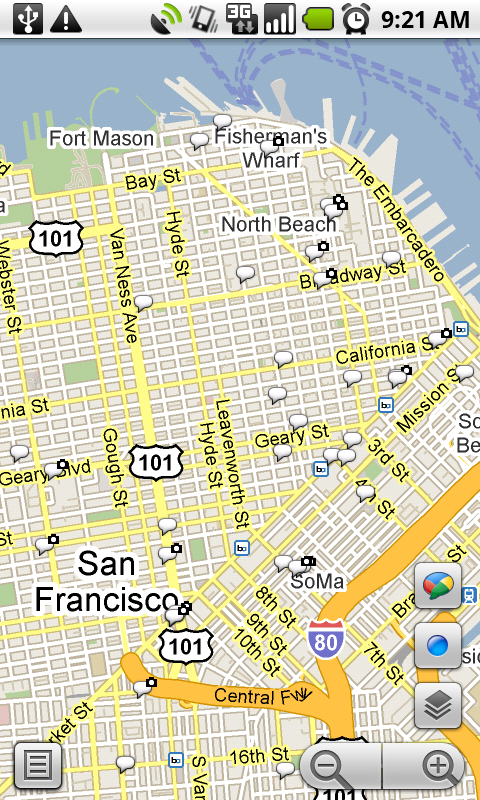
We’ve previously given you a few tips on using Google Buzz for mobile, and today we’re focusing on the Buzz layer in Google Maps for mobile. As many of you have found out, location puts a different spin on Google Buzz, adding context to posts and letting anyone find relevant public posts in a natural way -- on a map! We wanted to share some tips on a few creative ways we’ve seen you using the Google Buzz layer.

Explore the world around you
Are you curious if there’s anything interesting going on nearby? Enable the Buzz layer in Google Maps, then select any icon from the map or open the list view to see all the posts from the map area you’re viewing. We’ve found patients chatting from different hospital rooms, neighbors discussing a power outage, and even some public flirting. Here are a few more awesome examples we’ve stumbled upon:
  • A father hearing his baby’s first heartbeats at the hospital
  • Status updates of a rooftop fire being put out in San Francisco
  • Shooting of the TV show “Trauma” on location
  • Photos of the stadiums being built for the World Cup in South Africa
Ask questions and get answers
If you’re exploring a new area and looking for tips, post a question, and someone browsing Buzz in the area may be able to provide a quick answer. A few weeks ago on President’s Day, I was hanging out in the Russian Hill neighborhood of San Francisco. Rather than take my chances, I posted a question asking what the parking rules were. A friendly local soon informed me that I’d be free of parking stress -- meters were enforced but permit parking was not.

Share a picture worth a thousand words
Even if you could type 100 words a minute from your phone, sometimes a picture tells a different story than words could ever describe. Google Maps for mobile or the Android Buzz widget lets anyone share a picture of their favorite dish or the funny street sign they’ve found. Just attach a photo to your post or take a new one before posting. We’ve found great cases of citizen photo journalism on the public Google Buzz layer, such as traffic accidents blocking roads and location-tagged Picasa Web Albums showing the earthquake recovery in Haiti.

Give tips or learn about places
Google Buzz posts you create in Maps will always include your location (i.e. “My Location”) by default, but you can easily change the approximate location to a specific place, such as a restaurant. For example, change the post’s location and select the restaurant from the suggestions list before posting to give a recommendation or tip. Alternatively, you can search for the restaurant in Maps and select the Google Buzz option from the search results page (the post’s location will automatically be the restaurant). Now, people reading your post will know that your recommendation is about that exact restaurant, and your recommendation will be available for anyone browsing that restaurant’s search results page.

...and one reminder
Because we built Google Buzz in Maps for mobile to let you share information about places with the world, posts from Maps are always public to the web and include a location, either your approximate one or a specific place you choose.

To get started, install the latest version of Google Maps 4.0+ on your Android 1.6+, Windows Mobile, or Symbian S60 phone (BlackBerry coming soon; see availability details) by visiting m.google.com/maps on your phone and going to Layers > Buzz from the Maps main menu. From Android, iPhone, and iPod touch devices, you can also use the buzz.google.com Nearby view and map just like the Maps layer.

Visit our Help Center to learn more or tell us your feedback and questions in our Help Forum. Give us suggestions and vote on other people’s on the Mobile Product Ideas page!